
Signing in and creating an account happen on the same screen. There's no password to remember — we email you a secure link instead.
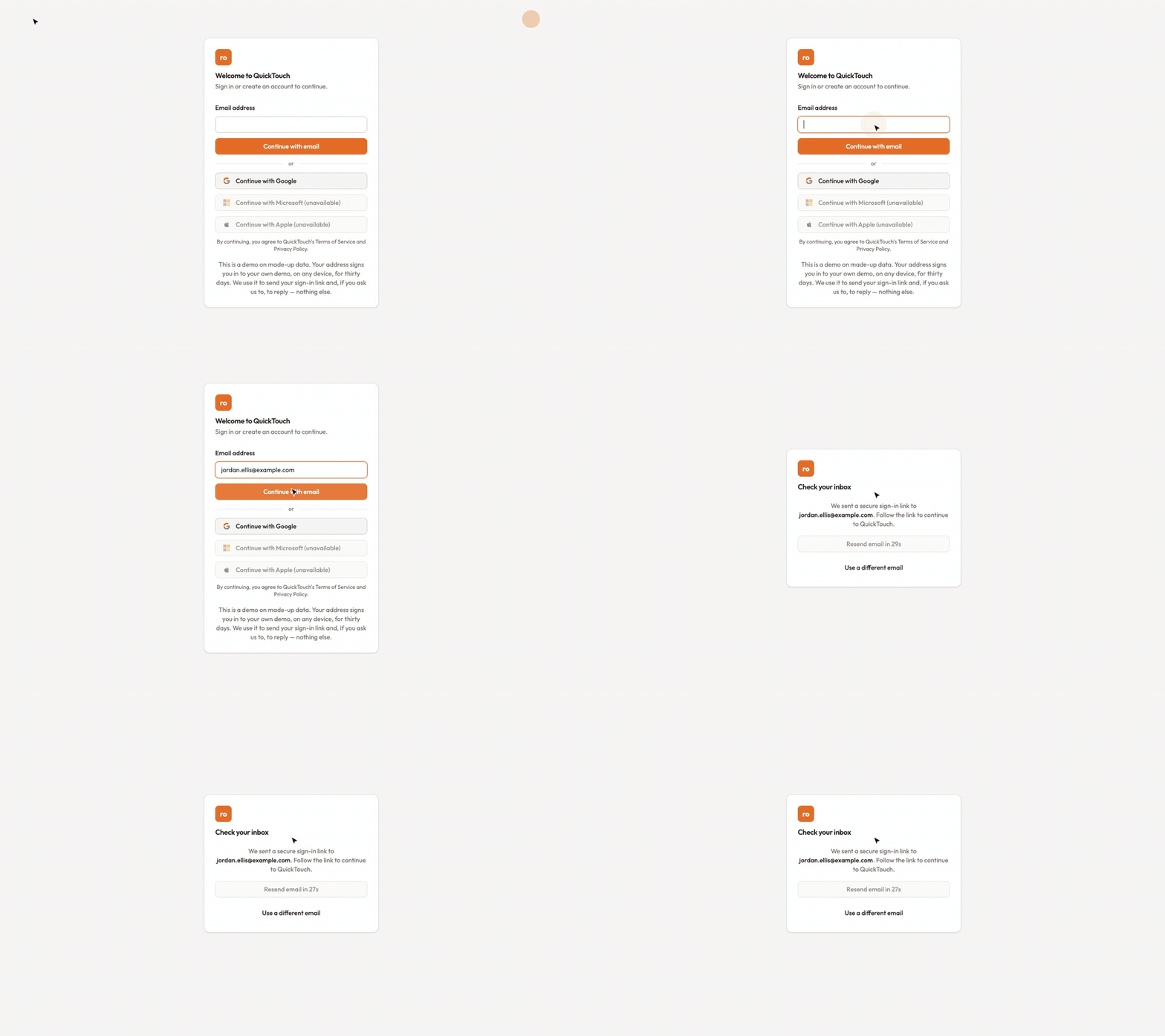
Sign in with an email link
Enter your email address and click Continue with email.
Open the email from QuickTouch and click the link. You're in.
No email? Check your spam folder, then use Resend email (available after 30 seconds) or Use a different email. Requesting a new link makes the previous one stop working, so always use the newest email.
Sign in with Google
Click Continue with Google and choose your Google account. Microsoft and Apple sign-in aren't available yet.
If something goes wrong
"This email already has an account" — sign in the way you did the first time, for example with the email link instead of Google.
"You've been signed out" — your session ended. Sign in again.
"Confirm it's you" — before sensitive changes, such as changing your email, we ask you to sign in once more.
Opening an invitation? Sign in with the address the invitation was sent to — only that address can open it.