
There are two ways into your organization: by having a confirmed email address at one of your domains, or by asking. Every organization starts with no domains, so everybody asks and somebody in your organization decides.
Approve or decline requests to join
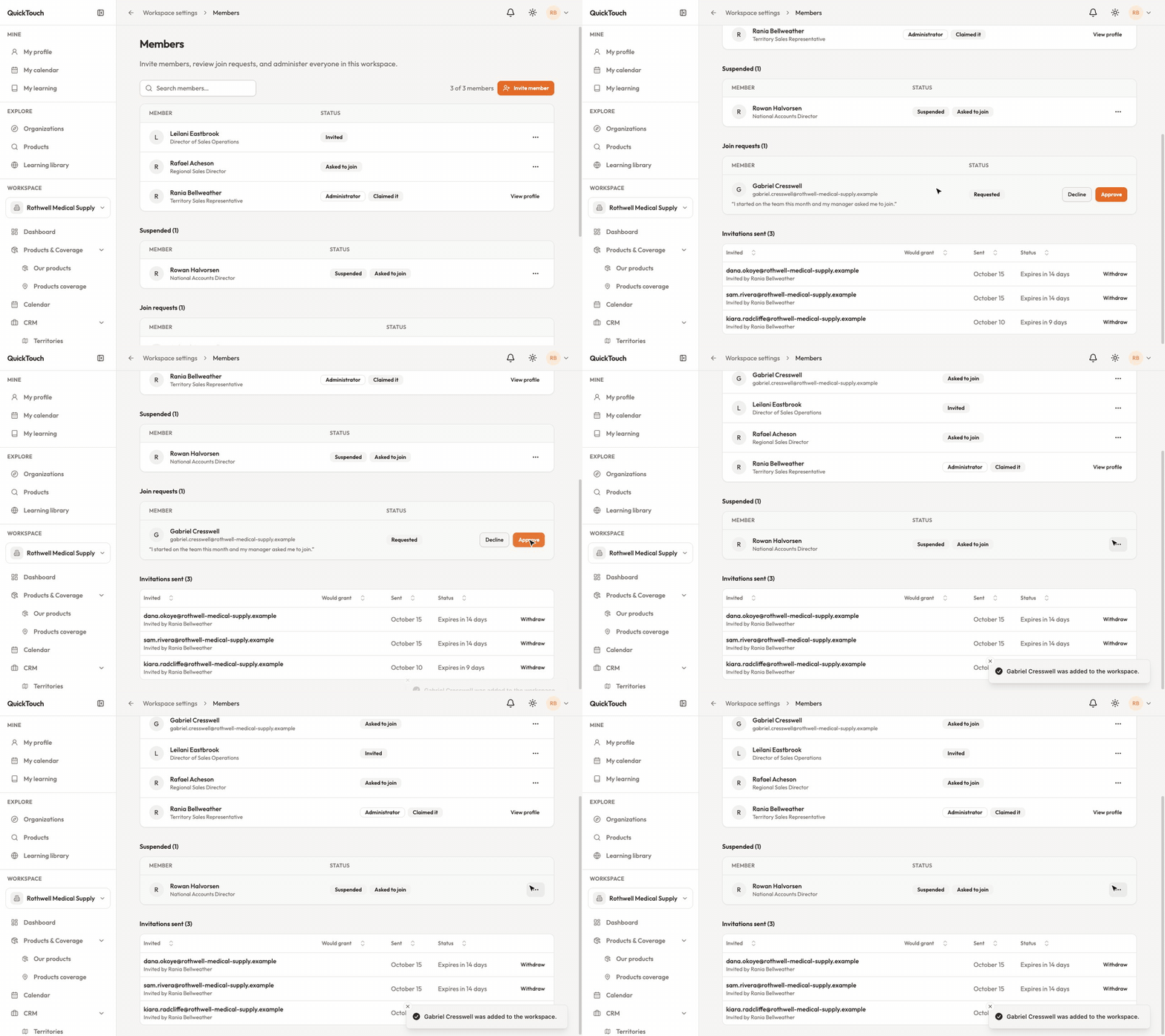
Open Workspace Settings › Members.
Under Join requests, read who is asking and their message.
Click Approve to let them in, or Decline.
Only a Workspace Administrator can decide requests.
Let your colleagues straight in
In Workspace Settings › How people join, add your company's email domain — for example cedarvalleymed.org. Anyone who confirms a work address at that domain joins straight away, without anybody approving it.
You need a confirmed address at that domain yourself. Add and confirm one under Work email addresses in your Account settings first.
Public email providers such as gmail.com can never be added.
To stop letting a domain in, remove it from the list.
When a matching domain still needs approval
The person was removed from the organization before, or their request was declined.
Your plan has no seats left.
Your plan has stopped changes.