
A role is a set of permissions. Each permission is one thing people with that role are allowed to do — for example, use the calendar or view territories. Anything a role doesn't switch on isn't allowed.
Open roles from Workspace Settings › Roles and permissions. The Roles tab lists every role; Assignments shows who holds which.
Standard roles and your own roles
Standard roles come with QuickTouch and can't be changed, but you can clone one as a starting point. Custom roles belong to your workspace and can be edited at any time.
Create a role
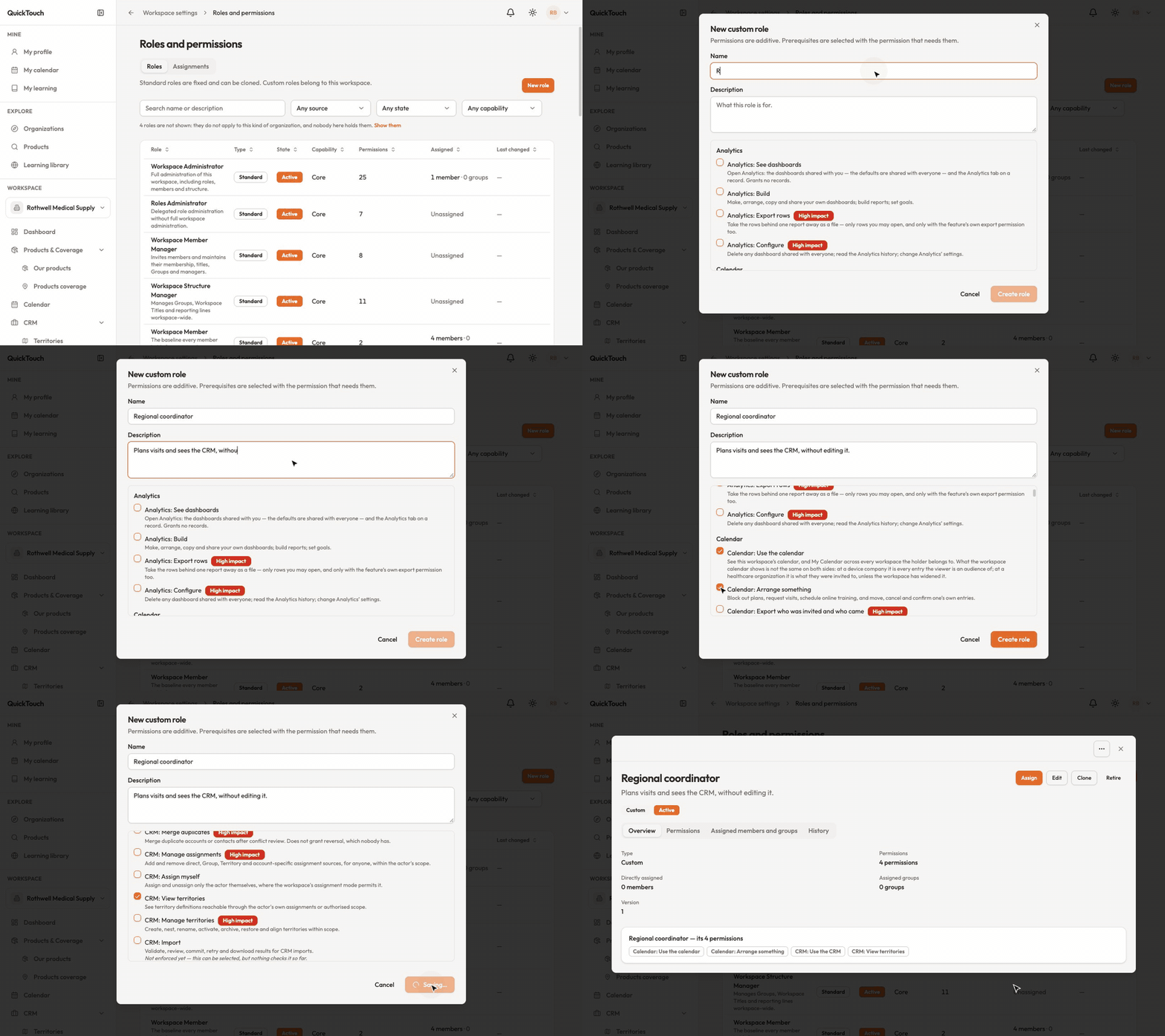
Click New role — or open a standard role and click Clone to start from a copy.
Give it a name and a description.
Tick the permissions it needs. Each one says what it allows, and some are marked High impact. If a permission needs another one to work, that one is ticked for you.
Click Create role.
Give a role to people or groups
Open the role and click Assign.
Find the people or groups who should have it.
Check what changes, then confirm.
A role's page also has Edit (custom roles only), and tabs for its Permissions, the members and groups that hold it, and its History. The Workspace Administrator role goes to individual people only, and only an existing administrator can give it.
Retire a role
Open the role and click Retire. If people still hold it, you'll be asked to move them to another role or take it away first.