
A group is a team inside your workspace — for example "Northeast reps" or "Key Accounts". Give a group a role and everyone in it holds that role, and so does everyone in the groups beneath it. That way you set access once for the team instead of person by person.
Who can do this: people whose role lets them manage groups, usually administrators. Everyone else can see the groups but not change them.
Create a group
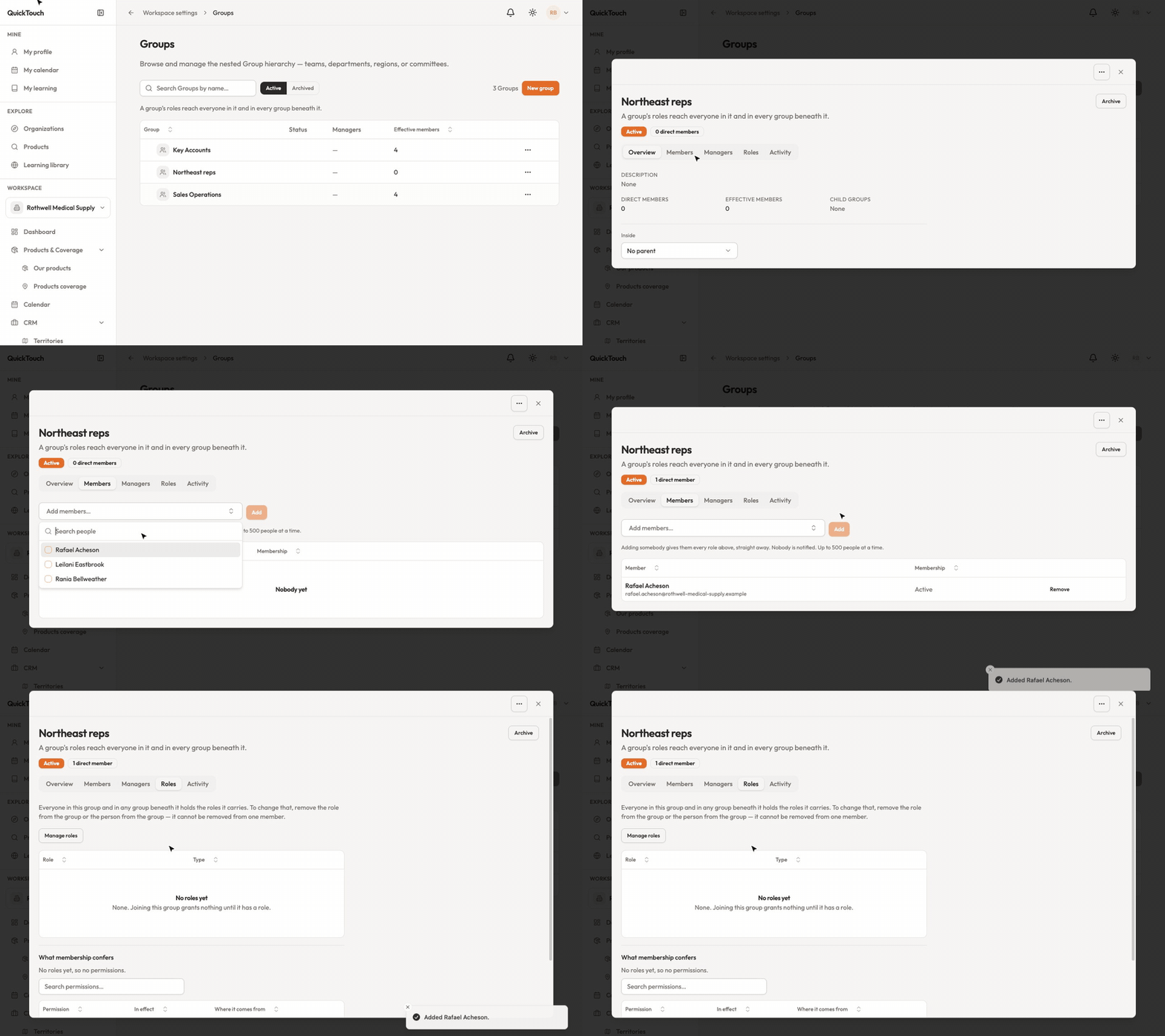
Open Workspace Settings › Groups.
Click New group, give it a name and, if you like, a description. To put it inside another group, choose that group under Inside.
Click Create.
Add people and give roles
Click the group to open it. Its tabs are Overview, Members, Managers, Roles and Activity.
On Members, use Add members to pick people, then click Add. They get the group's roles straight away. Nobody is notified.
On Roles, click Manage roles. Everyone in the group gets them, including anyone added later. Until a group has a role, joining it grants nothing.
Archive a group
Click Archive on the group when the team no longer exists. Archiving keeps the group and its history, but its roles stop reaching anybody. Nothing is deleted — archived groups are on the Archived tab and can be restored.
Note: the Workspace Administrator role can't be given to a group — only to individual people.