
When someone goes on leave or leaves the company, you can suspend them (reversible) or remove them (permanent).
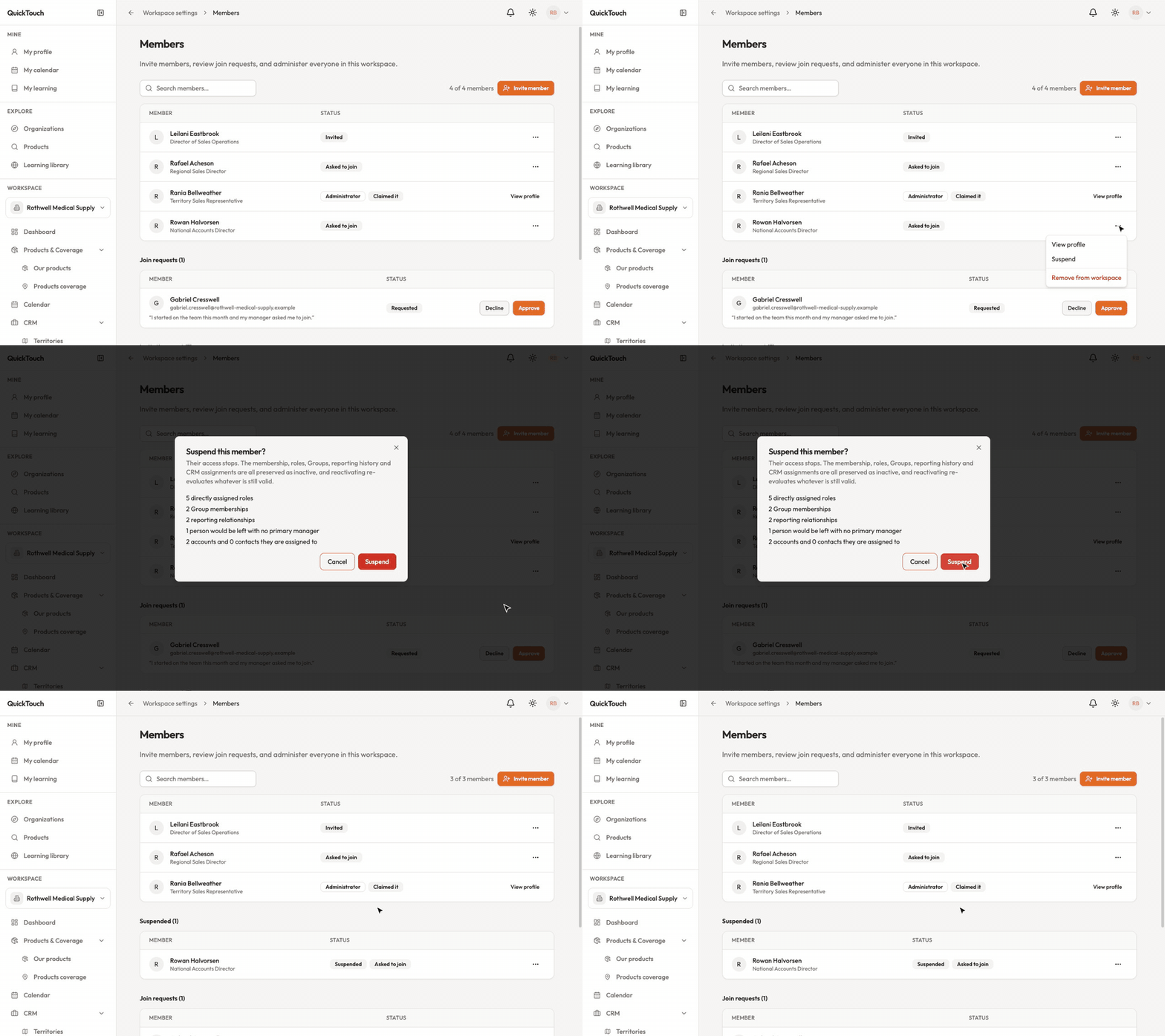
Steps
Open Workspace Settings › Members.
Click the ⋯ on the person's row.
Choose Suspend or Remove from workspace. The confirmation shows exactly what they hold — roles, groups, reporting lines, CRM assignments — so you can check before you confirm.
Suspend or remove — what's the difference?
Suspend: their access stops, but their roles, groups, reporting lines and CRM assignments are kept as inactive. Suspended people are listed under Suspended on the Members page, and Reactivate brings them back.
Remove: permanent. Their roles, groups, reporting lines and CRM assignments end. If you invite them again later, they start with a fresh membership.
Things that aren't allowed
Only a Workspace Administrator can suspend or remove another administrator.
You can't suspend or remove yourself. To go, use Leave this workspace in Workspace Settings.
The last active administrator can't be removed. Make somebody else an administrator first.