
Add a plan
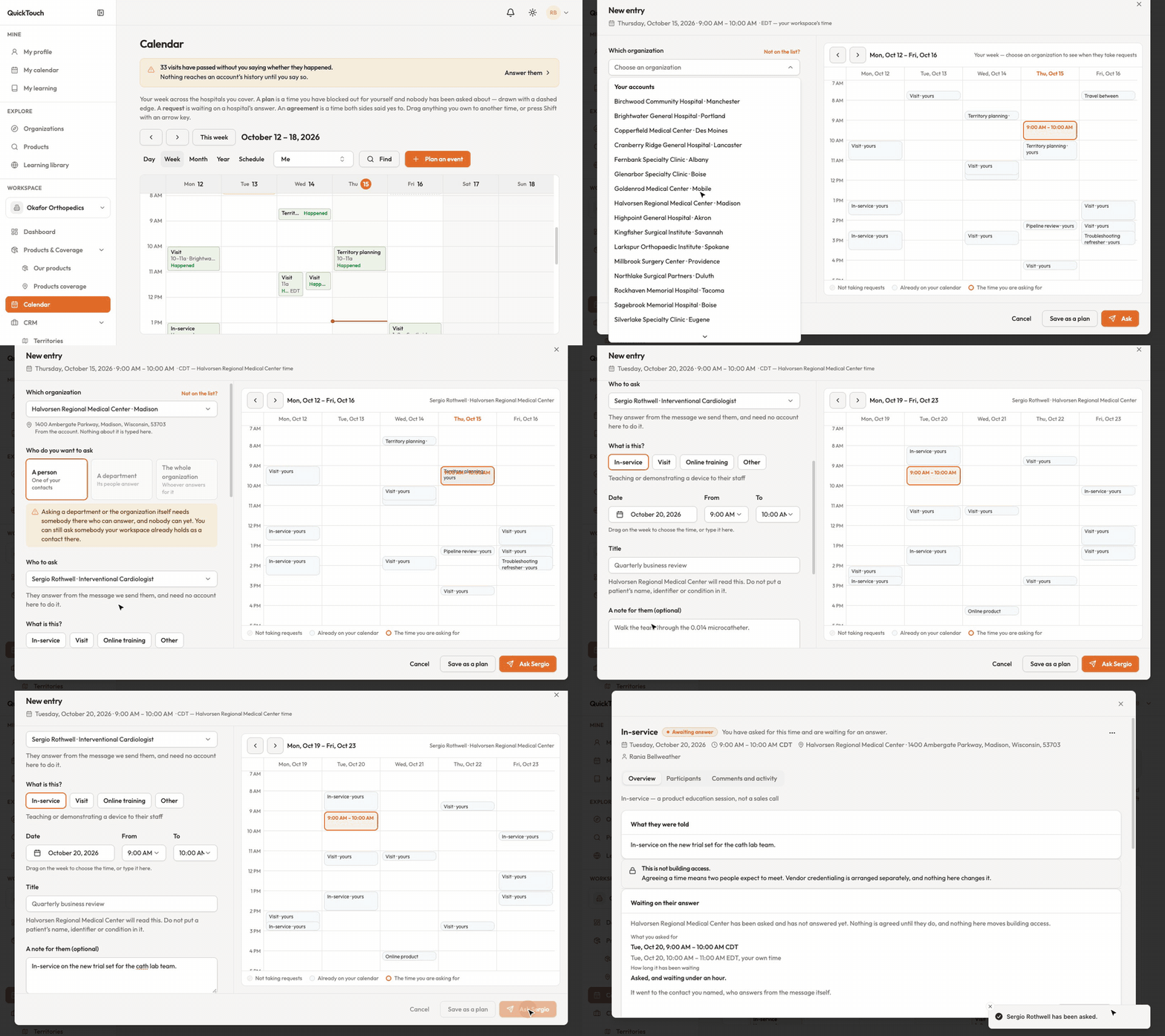
In Calendar, click Plan an event — or click an empty time on the week.
Choose what it is — In-service, Visit, Online training or Other. You can't change this later.
Set the date and time and, if you like, a title.
Choose who at your company can see it: everyone with calendar access, whoever works this account, a particular team, only you, or only the people invited.
Click Save as a plan. Nobody at the hospital is asked.
Ask a hospital for time
In the same window, choose Which organization — one of your accounts, or find another.
Choose who to ask: a person (one of your contacts there), a department, or the whole organization. A department or the whole organization only works once somebody there has been named to answer.
Pick the kind of event and the time — type it, or drag on the week beside the form. Add a note for them if you like (never a patient's name or condition).
Click Ask. It shows as Awaiting answer until they reply.
A contact answers straight from the message we send them — they don't need a QuickTouch account. The hospital can say yes, say no, or offer another time, and you're notified when they answer. Agreeing a time is not building access: vendor credentialing is arranged separately.
Change or cancel
Fix what it says edits the title, meeting link and note.
Move it changes the time — or drag the entry. Moving an agreed visit asks the hospital about the new time; the old time stands until they answer.
Take back the ask withdraws a request they haven't answered.
Call it off (in the ⋯ menu) cancels it but keeps it on the calendar, marked as cancelled. Delete it is only for plans.