
Two calendars
Calendar (in your workspace's menu) is your organization's calendar. It appears once your organization has switched the Calendar on and your role lets you see it.
My calendar shows everything you're part of, from every workspace you belong to. Filter it with Which workspace and choose whether your week starts on Monday or Sunday.
Views and moving around
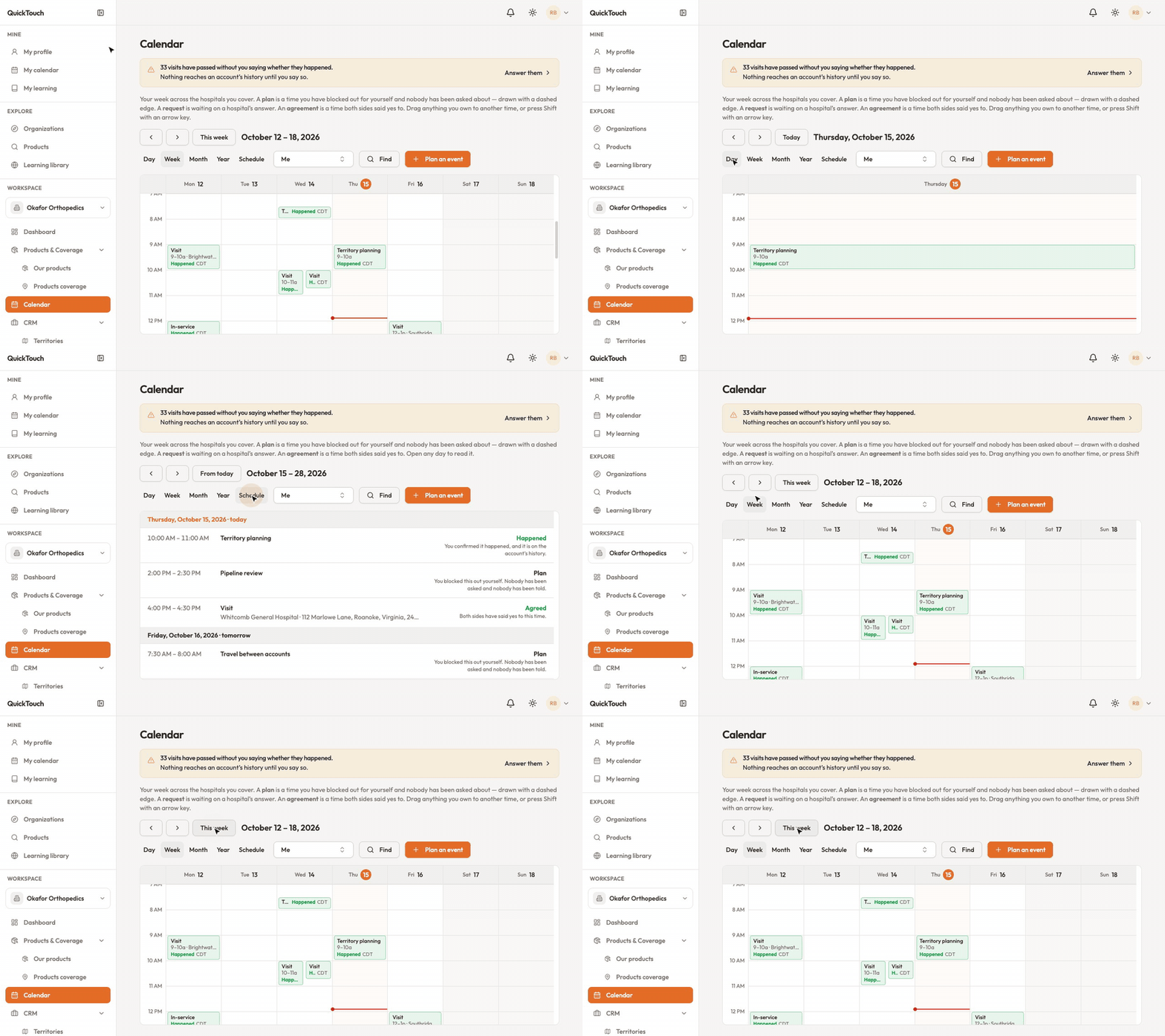
Pick a view: Day, Week, Month, Year or Schedule.
Use the arrows to go back and forward. The button beside them brings you back to now — it reads This week, This month and so on, depending on the view.
Click Find to search entries.
At a device company, the picker next to the views shows your entries, everybody's, or one colleague's. At a hospital you pick a department instead.
What you see on the calendar
Plan (dashed edge) — a time you've blocked out for yourself. Nobody has been asked.
Request — you've asked a hospital for the time and are waiting for their answer.
Agreement — both sides said yes.
Drag anything you own to another time, or press Shift with an arrow key. After a visit, QuickTouch asks whether it happened — nothing reaches the account's history until you say so.
QuickTouch doesn't connect to Google Calendar or Outlook yet. When a visit is agreed, you can download it once to add it to your own calendar, but that copy won't update if the visit changes.