
A territory is a named set of accounts that some members are responsible for — for example "Northeast", with smaller territories beneath it. Territories organize the work; they don't limit what anyone can see, so everyone with CRM access still sees every account. Open them from CRM › Territories.
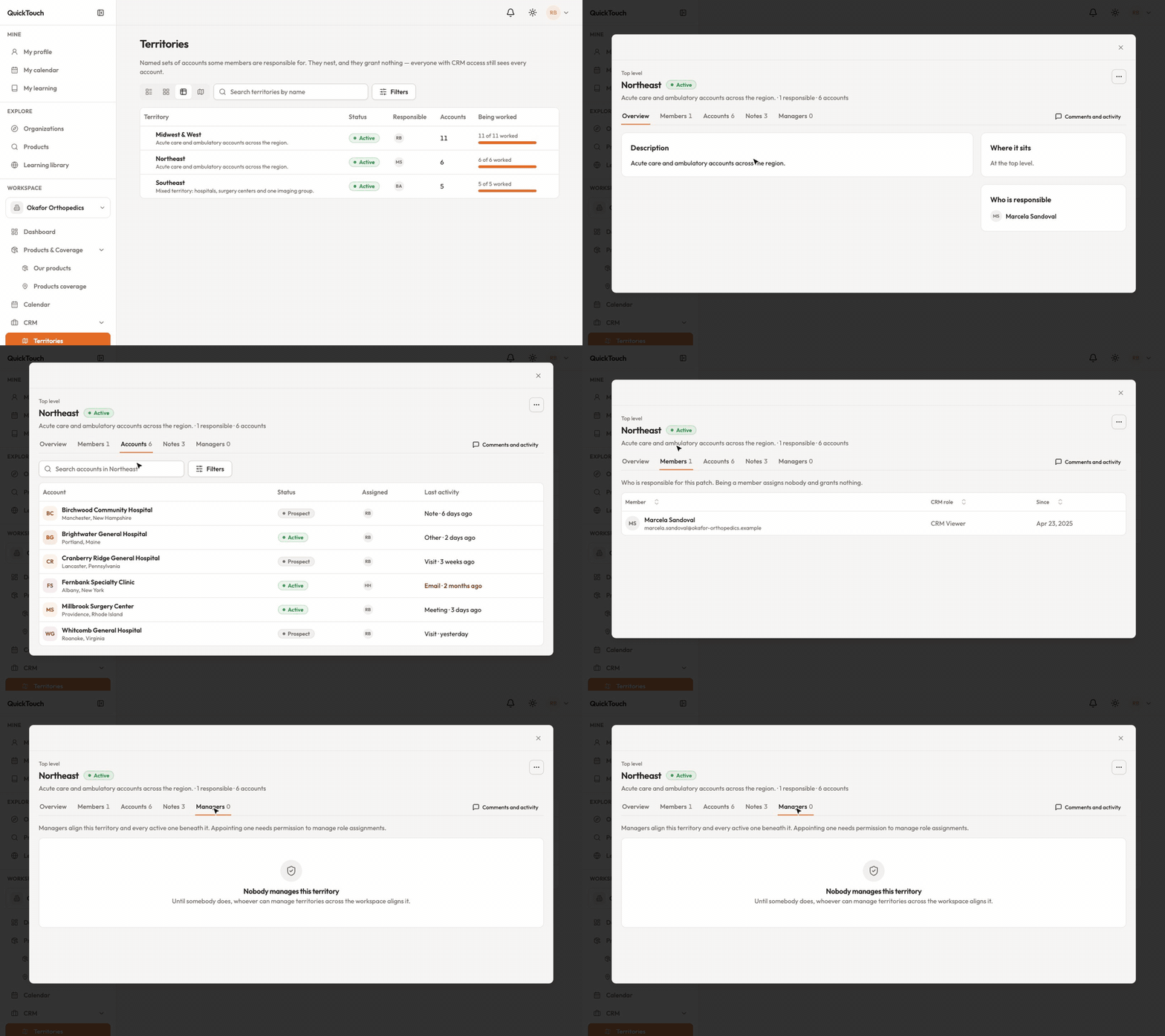
Click a territory to see its accounts, its members and its managers. Creating and changing territories needs a role that allows managing them — without one, you won't see the buttons below.
Create a territory
Click Add territory.
Give it a name, choose what it Sits under (or Top level), and add a description if you like.
A new territory starts as a draft. When it's ready, choose Activate from its actions menu.
Fill it in
Add account on the Accounts tab; Stop covering takes one out.
Add member on the Members tab puts people on it.
Add manager on the Managers tab. A manager looks after this territory and every active one beneath it, and can assign anybody within it.
The actions menu also lets you rename, archive or restore a territory, or abandon a draft you no longer need.