
A Contact is a person you work with — a surgeon, a nurse, a materials manager. Open them from CRM › Contacts. Switch between My contacts and All contacts, and search by name, job title or hospital.
Add a contact
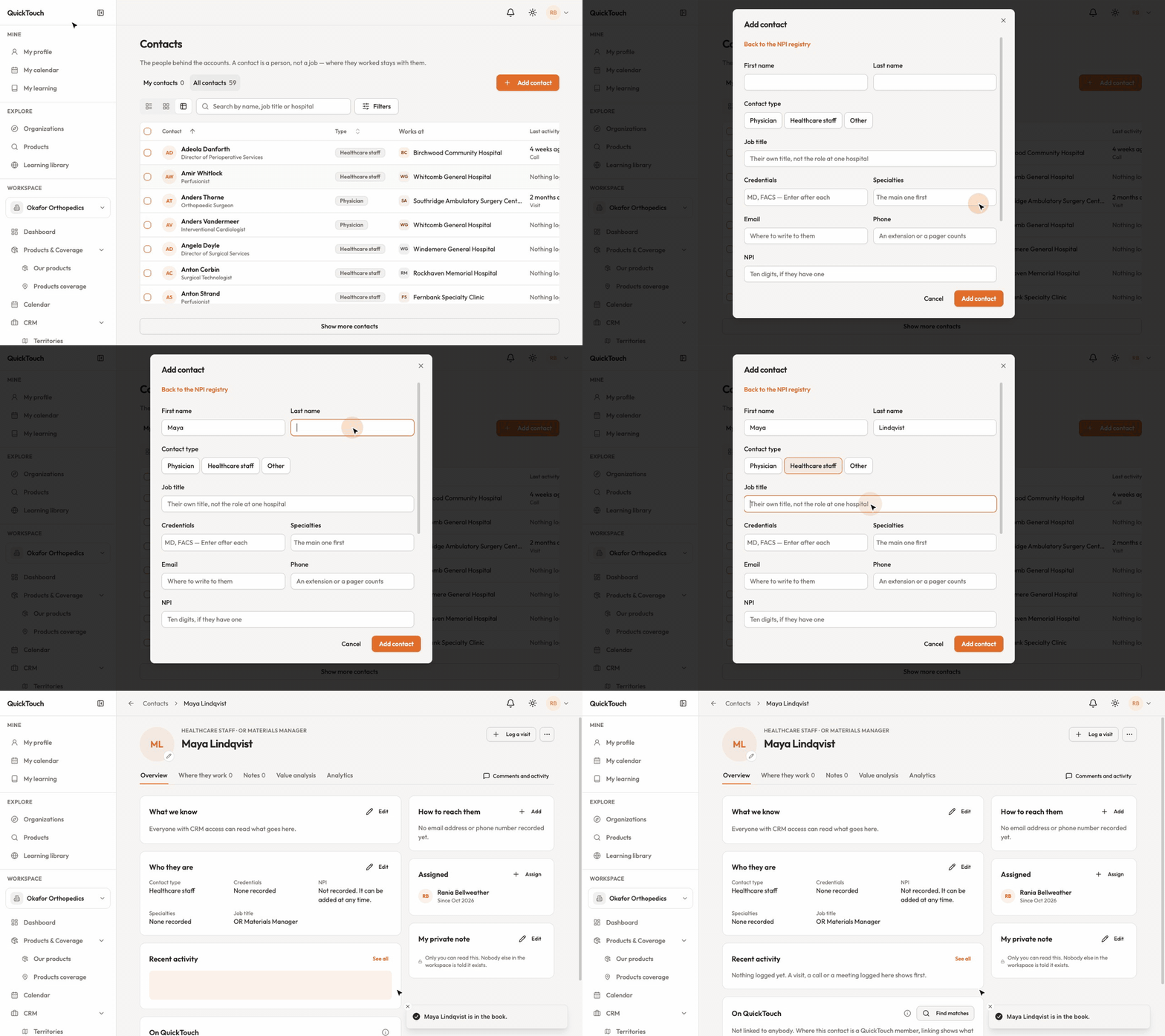
Click Add contact.
For a clinician, find them in the NPI registry by name and state, or by their NPI. Picking one fills in their name, credentials and specialty.
Not a clinician, or not in the registry? Click Enter by hand. Only a name and a contact type (Physician, Healthcare staff or Other) are required.
Optionally choose the hospital they work at — then pick the month they started there too.
Click Add contact.
QuickTouch warns you if someone with the same name or NPI is already there, so you don't create a duplicate.
Record where they work
A person can work at more than one hospital. On the contact's Where they work tab, click Add from my accounts, pick the hospital, and add their role, department and start date. Tick "This is where they mainly work" for their main hospital.
When they leave, choose They have moved on — the history stays. You can also add people from the other side: on an account's Contacts tab, click Add from my contacts.
Update a contact
Edit who they are changes their name, title, contact details and specialties.
Edit what we know is read by everyone with CRM access. Edit my private note is for your eyes only.
The ⋯ menu lets you merge a duplicate into this contact, or archive it.