
An Account is a hospital, surgery center or clinic your company sells to. Open them from CRM › Accounts in the sidebar.
Don't see CRM? Your company needs the CRM switched on, and you need a CRM role. Ask your administrator. You'll only see the buttons your role allows.
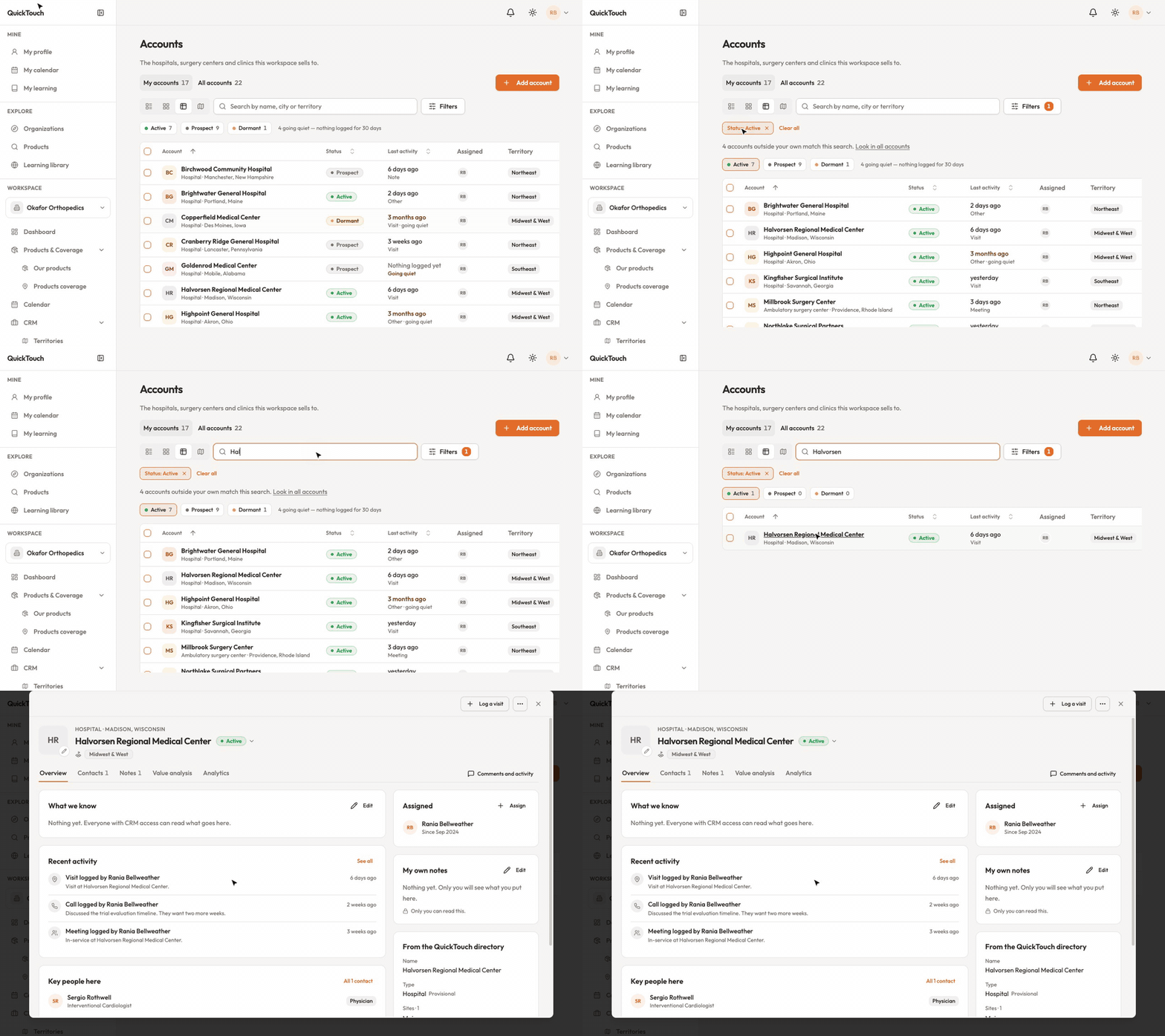
Find an account
Switch between My accounts and All accounts.
Click a status — Active, Prospect or Dormant — to show only those accounts.
Search by name, city or territory.
Click Filters to narrow by territory, who's assigned, or last activity — for example accounts going quiet with nothing for 30 days.
Show the list as cards, as a table, or as a table with a map.
Click an account to open it.
Add an account
Click Add account.
Search for the hospital in the QuickTouch directory and pick it. You don't type accounts in by hand, so everyone shares the same record.
If it's already in your book you'll see "Already in your book" — open it instead. If it isn't in the directory, use Add a new organization.
Update an account
Click the status next to the name to change it between Prospect, Active and Dormant.
What we know is shared with everyone who has CRM access. My own notes are seen only by you.
Log a visit records a visit, call, meeting or email in the account's activity.
The ⋯ menu lets you add it to a territory, merge a duplicate into it, or archive it.
Accounts are never deleted — only archived. To see archived ones, tick "Show archived accounts" in Filters, and use Restore to bring one back.
Tip: tick several rows to reassign, add to a territory or archive them all at once.